How to Set Up a Second Monitor and Boost Your Workspace

A second monitor is one of the simplest upgrades you can make to a workspace. Instead of switching between windows, you can keep your main task on one screen and your notes, email, or research on the other. That extra space makes writing, studying, and planning feel calmer and faster.
Start by checking what your computer can connect to. Most laptops and desktops have HDMI, DisplayPort, or USB-C ports, and many modern monitors accept more than one type. Look at the back of your computer and the monitor, then choose a cable that matches both. If the ports do not match, a simple adapter will usually solve the problem.
Choosing the Right Screen
Size and resolution matter more than brand. A 24-inch or 27-inch screen suits most desks, and a resolution of at least 1080p keeps text sharp. If you can, match the height and resolution of your existing screen so your eyes do not have to adjust when you move between them. An adjustable stand, or a monitor arm, helps you set the top of the screen at eye level and keep a comfortable distance of about an arm's length.
Once the monitor is plugged in, your computer should detect it automatically. On Windows, open Display Settings to choose Extend these displays, then drag the screen icons to match their real positions on your desk. On a Mac, open System Settings, then Displays, and arrange the screens in the same way.
Arranging Your Workspace
How you use the second screen matters as much as the hardware. Keep your main task on the screen directly in front of you and put reference material on the side screen. That might be a document you are summarising, a video call, a calendar, or a music player. Avoid filling the second screen with social media or messages, or it will distract you more than it helps.
Your choice of main device also shapes the setup. A laptop with a second monitor can feel like a full desktop, while a tablet setup may need different cables and apps. If you are still deciding which device suits your daily work, read our comparison of tablets versus laptops and which one fits your daily work.
Finally, take care of the files and photos you keep on your computer. A better workspace is only useful if your work is safe, so set aside time to protect it by following our guide to how to back up your photos and files in 20 minutes. With your screens arranged, your cables tidy, and your files backed up, your workspace will feel calmer, clearer, and ready for a productive day.
second monitordual monitorworkspace setuphome officeproductivitydesk setupmonitor setupwork from homeergonomicscomputer tips
Related Articles

How to Back Up Your Photos and Files in 20 Minutes
Losing photos hurts more than losing a phone. Follow this simple 20-minute backup routine to keep your memories and important files safe.
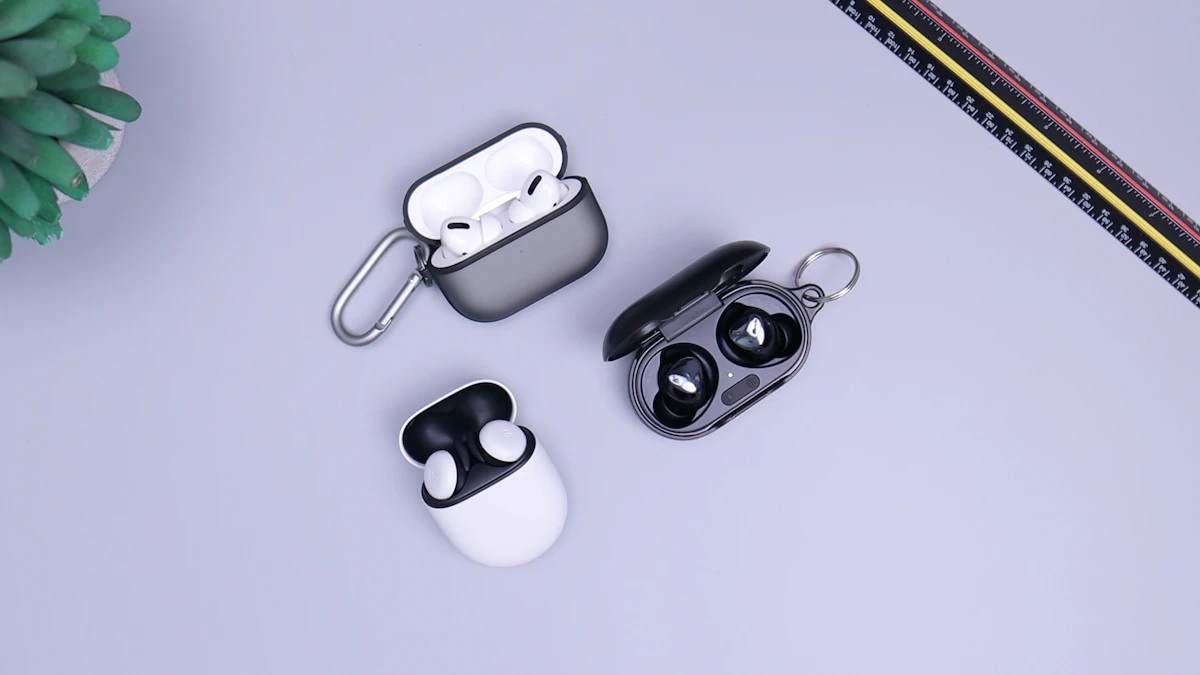
Wireless Earbuds in 2026: Sound, Battery, and Comfort
Wireless earbuds keep getting smaller, smarter, and longer-lasting. This guide explains sound, battery life, fit, and features worth paying for in 2026.

Voice Search in 2026: How People Search Without Typing
Voice search is now part of daily life. Learn how people ask questions aloud, what makes a spoken query different, and how to get useful answers fast.